Configuring Outlook Express for Aloha Broadband Email
Please note that we do not recommend or encourage the use of Outlook Express Click Here to find out Why
- Open Outlook or Outlook Express.
- Click the Tools menu, and select Accounts…
- Click Add, and then click Mail…
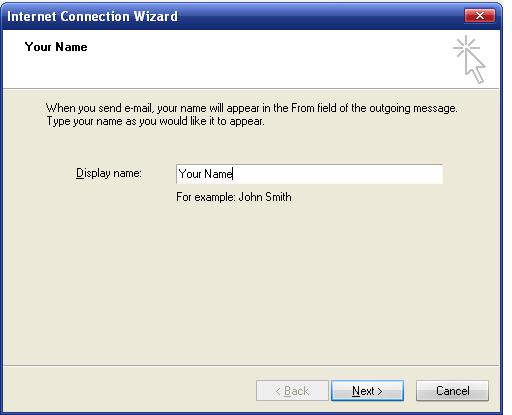
- Enter your name in the Display name: field, and click Next.
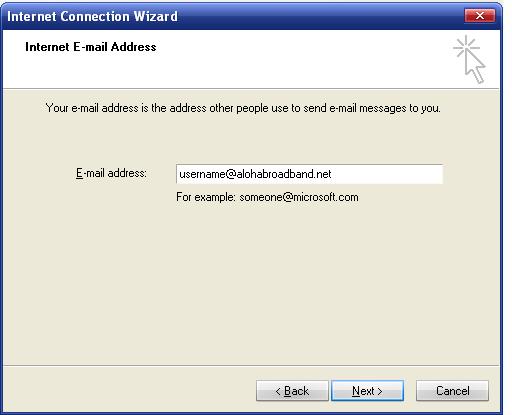
- Enter your full Aloha Broadband email address (username@alohabroadband.net) in the Email address: field, and click Next.
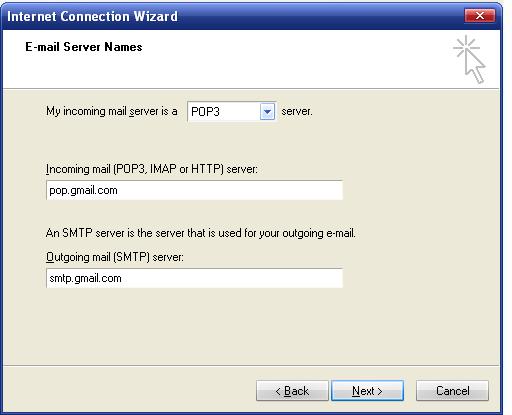
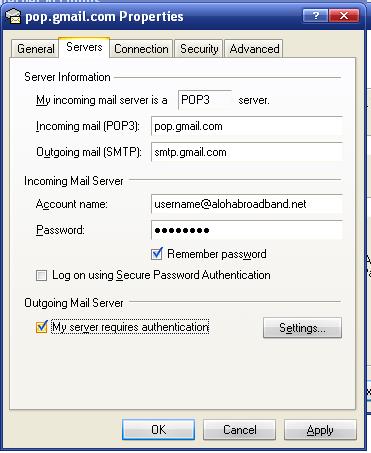
- Enter pop.gmail.com in the Incoming mail (POP3, IMAP or HTTP) server: field. Enter smtp.gmail.com in the Outgoing mail (SMTP) server: field. Google Apps users, enter the server names provided; don’t add your domain name in this step.
- Click Next.
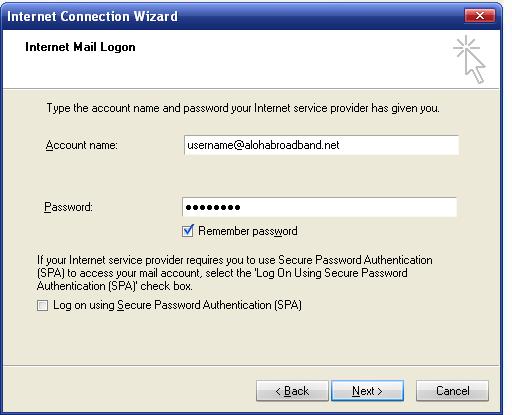
- Enter your full email address in the Account name:field.Make sure your username is alohabroadband.net, not alohabroadband.comEnter your email password in the Password: field, and click Next.
- Click Finish.
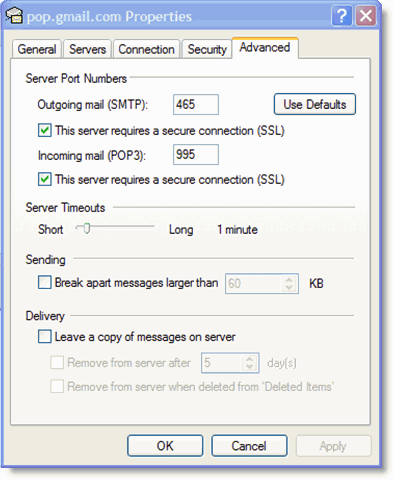
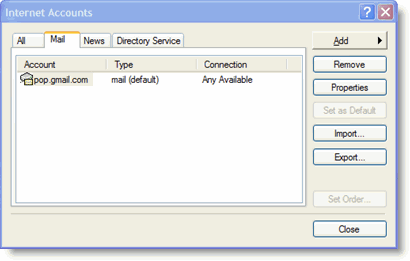
- Highlight pop.gmail.com under Account, and click Properties.
- Click OK.Congratulations! You’re done configuring your client to send and retrieve alohabroadband.net messages.
|